Setting up your Coupa Supplier Portal (CSP) for the first time
As a first-time supplier connecting to Addepar in Coupa, you will receive an invitation to join the CSP portal. Check your spam or junk folder if you have not received an invitation.
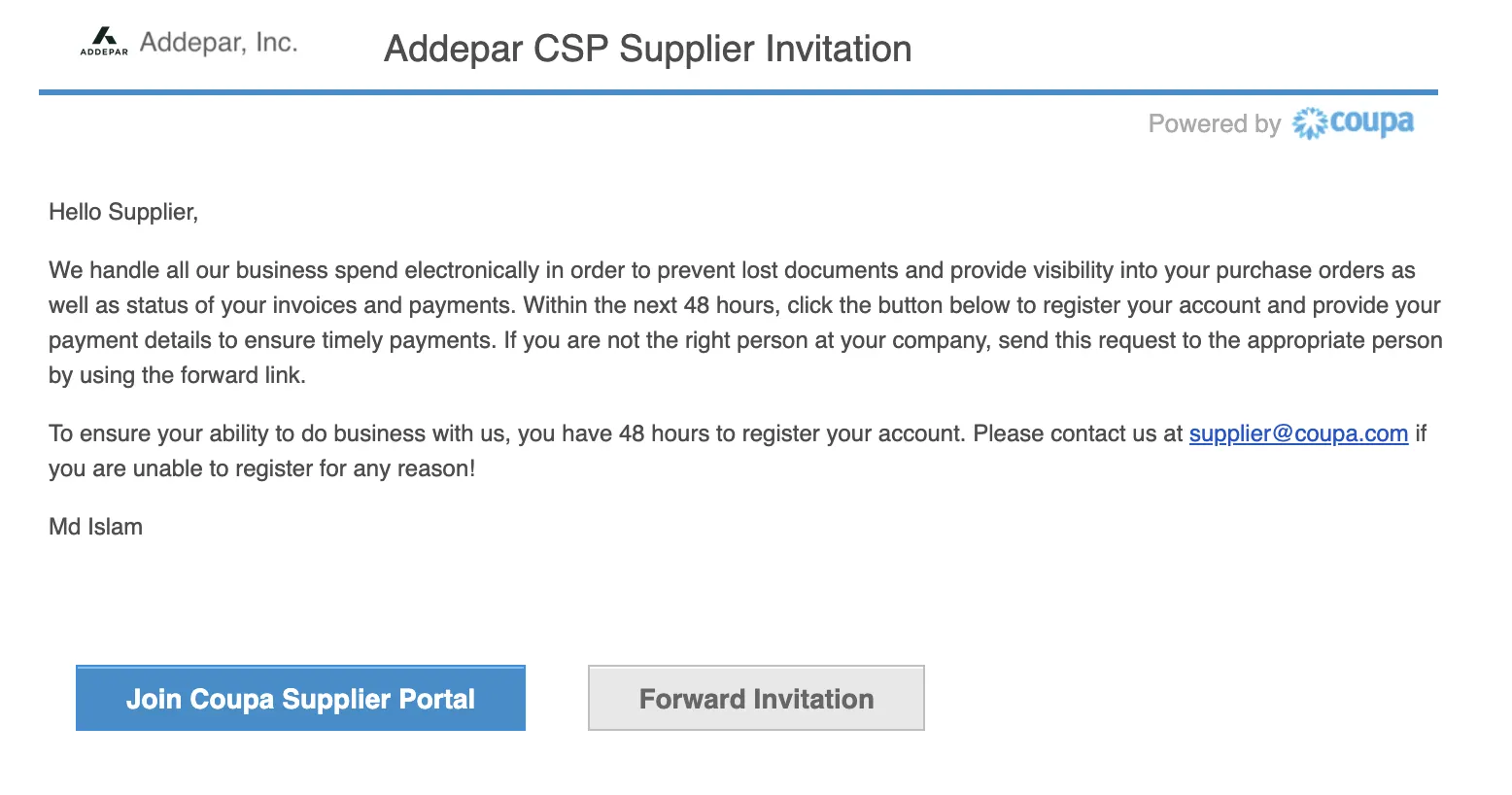 Please click the Join Coupa Supplier Portal button in the
email invitation to create an account. It is highly
recommended you use a universal email address (e.g.,
orders@vendor.com or
ar@vendor.com). Once you have set your username and password, the below
pop-up window will appear:
Please click the Join Coupa Supplier Portal button in the
email invitation to create an account. It is highly
recommended you use a universal email address (e.g.,
orders@vendor.com or
ar@vendor.com). Once you have set your username and password, the below
pop-up window will appear:
Please follow the instructions in the pop-up window to set up your business profile and remittance information. This is required in order to be able to submit invoices and receive payments from Addepar.
-
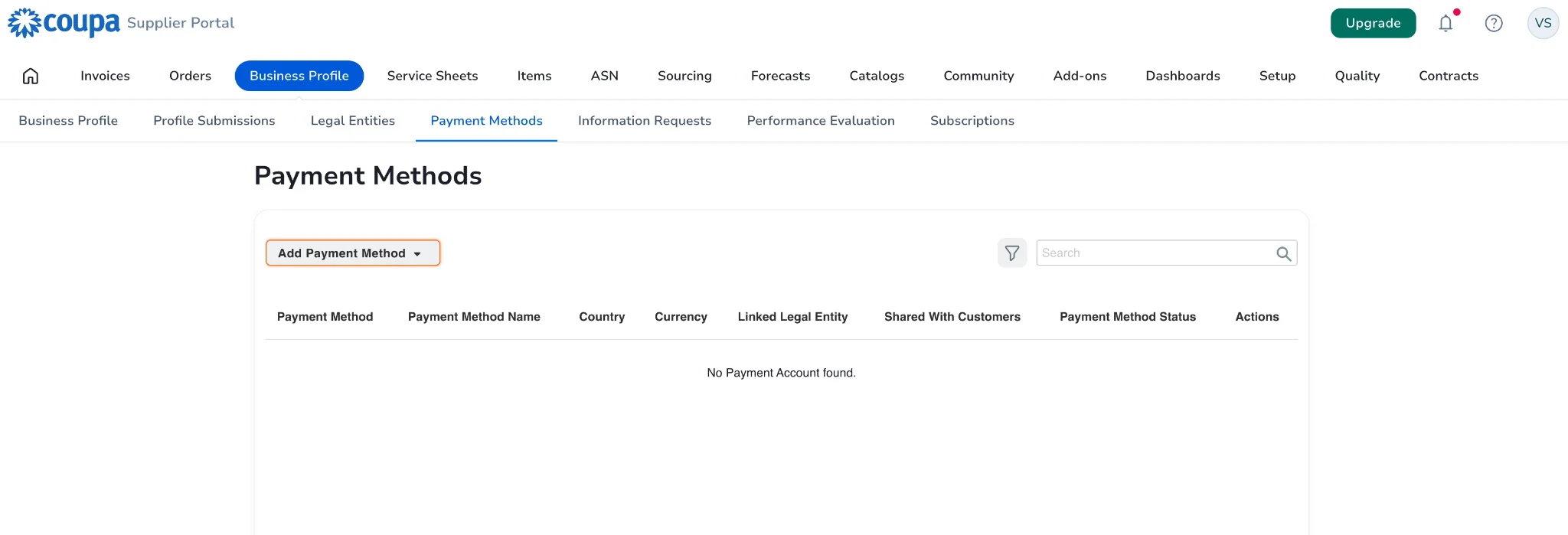
You can also go to Payment Methods under Business Profile to set up a payment method for your invoices. Documentation with bank details on company letterhead or a voided check needs to be attached.
-
To confirm you have successfully set-up your payment method, the Customer Sharing Status column will list Addepar
Existing Coupa Supplier Portal (CSP) suppliers
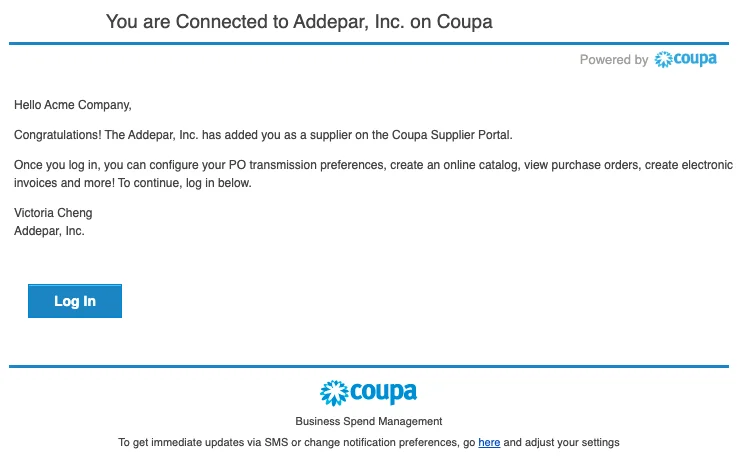
If you are already a registered CSP supplier, Addepar will onboard and add you as a supplier. If you have not received the email below, please contact us at procurement@addepar.com.
Submitting an invoice
Invoices are required to be submitted against an issued Purchase Order (PO). If you do not see any POs, contact your Addepar point of contact and/or procurement@addepar.com.
-
Navigate to the Orders tab, select Addepar as the customer and find the applicable issued PO.
-
Under the Actions column click on the gold Create Invoice icon for the applicable PO. Note - you can still invoice against the PO even if the PO amount is less than your invoice amount.
-
On the Create Invoice page, fill in at least the mandatory fields (marked with a red asterisk*) in your invoice. Some of the fields are pre-populated with information from the PO.
-
Add new or choose existing invoicing details.
-
Add or select invoicing information
-
You can either add new invoicing details or select from existing options. This includes choosing the following address types:
Invoice From
Remit-To
Ship-From
-
-
Legal entity selection
-
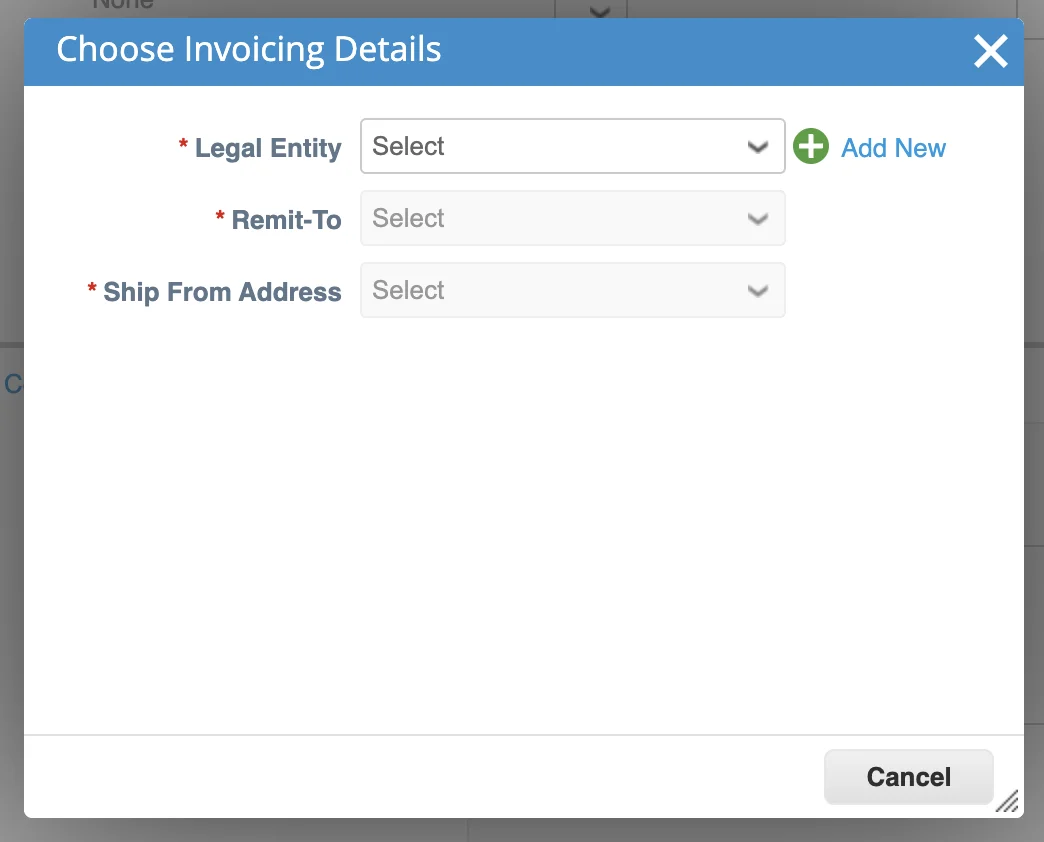
When you select a Legal Entity, a pop-up window will display the available Invoice from addresses associated with this entity.
-
It also shows how customers linked to this Legal Entity can make payments. For example: "This customer can pay you by Bank Account or Credit Card."
-
-
Multiple payment methods
-
If multiple payment methods are supported, you may see several Remit-To and Ship-From addresses — each corresponding to a specific payment type.
-
-
Adding a new payment type
-
To accept a new payment method, you may need to create a new Remit-To address specific to that payment type.
-
-
Once an invoice is submitted, you can check its status under the Invoices tab. Please note all invoices will be routed for internal approvals before payment can be sent.
FAQs
-
How do I access the Coupa Supplier Portal (CSP)?
-
How much does it cost to use the Coupa Supplier Portal?
It’s free. Coupa does not charge suppliers to use the CSP. The direct free link is:
https://supplier.coupahost.com -
How do I register or get invited?
Addepar suppliers receive an invitation via email from their Addepar contact. Alternatively, visit supplier.coupahost.com and look for the “Join and Respond” message in your inbox.
-
What’s the onboarding process?
Click the “Join and Respond” email.
-
Fill in personal details: name, email, company, department, role.
Verify with the emailed code.
-
Enter company address, tax ID and bank information.
Set up remittance (US or non-US).
Enable multi-factor authentication.
-
Receive confirmation when your account is approved.
-
Can I change my CSP email?
No, your CSP account is tied to the original email. To change it, ask your Coupa client to update their record, then resend the invitation.
-
I can’t log in or see “Unauthorized or Expired account.” What should I do?
-
Check two-factor authentication: ensure your backup codes are valid or use Google Authenticator.
-
Try another browser or incognito mode to avoid autofill issues.
-
Contact the Coupa customer who invited you and ask them to verify your account status.
-
-
How do I submit a PO-backed invoice?
Go to the Orders tab and select the PO.
Click the gold Create Invoice icon.
-
Fill in or select existing Invoice From, Bill-To, Remit-To, and Ship-From details.
-
Choose the correct Legal Entity — this shows available Invoice From addresses and payment methods (e.g., “Bank Account or Credit Card”).
-
Why do I see multiple Remit-To or Ship-From addresses?
-
Some customers have multiple payment options. Each payment method might require a different Remit-To or Ship-From address. If you want to accept a new payment type, you’ll need to add a Remit-To address for it.
-
Review all fields (taxes, fees) and click Submit → Send Invoice.
-
-
What invoice requirements must I meet? Your invoice must include:
Invoice date and number
Supplier and Legal Entity addresses
Remittance address (if different)
Bank details
VAT/GST numbers (if applicable)
Description of goods/services and pricing
-
Net/gross amounts, taxes, currency, PO number, project numbers
Incomplete invoices will be rejected
-
How can I check my payment status?
View the Invoices tab and use the “View” drop-down to select Payment Information and track your payment status.
-
Can I add users or admins to my CSP account?
Yes. In the Admin tab, click Invite User, enter their details, assign permissions and they’ll receive an email to set up their account.
-
What if the administrator left the company and I can’t access our Coupa Supplier Portal (CSP) account?
CSP accounts are owned and maintained by suppliers and can be used to invoice any customer that uses Coupa. Addepar is unable to reset passwords, permission additional users or configure any settings for supplier CSPs. If an administrator leaves without transferring ownership or you have lost admin access, you will need to contact Coupa Support for assistance.
To prevent this, it's recommended to use a shared email inbox (e.g. billing@acme.com) for the initial registration or permissioned as an account administrator. Account administrators can grant permission to additional named users and can manage customer visibility for users
-
Why can’t I see "Addepar" in my list of customers after logging in?
If Addepar is missing from your customer dropdown, your CSP account has not been successfully linked to Addepar. This happens if you registered with a different email than the one Addepar has on file, or if the linking process wasn't completed. Contact your Addepar representative to verify and re-link your profile.
-
Why do I get an "UNAUTHORIZED" error when trying to upload an invoice?
An "UNAUTHORIZED" error or blocked view usually indicates an issue with account permissions. This happens if your supplier record has been marked inactive in Addepar's system, or if your company's CSP administrator has not granted your user profile explicit permission to create/upload invoices.
-
What does the "document not found" error mean when I click an email link?
This error occurs when you attempt to: access a PO or invoice via an automated email notification link but the link has expired; log into the wrong CSP account; or access a document that was updated/archived. Log directly into the CSP portal and navigate via the Orders or Invoices tabs instead of using the email link.
-
My company has multiple legal entities. How do I know which one to select for a PO?
If your company manages multiple legal entities in Coupa (e.g., different regional branches or subsidiaries), you must match the entity to the specific Purchase Order. Check line items of the PO issued by Addepar to see which branch was designated, and select the corresponding Legal Entity during invoice creation.
-
Why am I getting a "duplicate invoice number" error?
Coupa automatically blocks any invoice if the invoice number has been used previously by your company for that customer — even if the original invoice was rejected, voided or canceled. To fix this, you must resubmit the invoice using a completely unique number (e.g., appending a suffix like "-A" or "-REV").
-
Why is my payment profile remaining inactive, or why can't I see the Remit-To section?
You must fully complete your Legal Entity setup within the CSP before Coupa will allow you to manage payment accounts. If this setup is incomplete, your Remit-To options will be hidden or shown as inactive. Go to your portal settings, finalize your Legal Entity configuration and you will then be able to activate your payment profiles.
-
Why am I getting a currency mismatch error on my Supplier Payment Account (SPA)?
Your invoice currency must perfectly align with the banking details linked to your profile. For example, if you are trying to submit a USD invoice, you must have a USD-designated bank account set up and linked to your active Remit-To address.
-
Legal Entity setup before SPA (Supplier Profile/Actionable Notifications).
Before you can successfully set up Supplier Profile Approval (SPA), you must establish your Legal Entity. Please navigate to Business Profile > Legal Entities (or Setup > Legal Entity Setup depending on the UI version), click Create / Add Legal Entity, fill out your government-registered details and save it before completing the rest of their customer profile documentation.
Contact
-
For Coupa and Purchase Order inquiries, please contact procurement@addepar.com
-
For payment inquiries, please contact finance@addepar.com